Development Framework Terminal
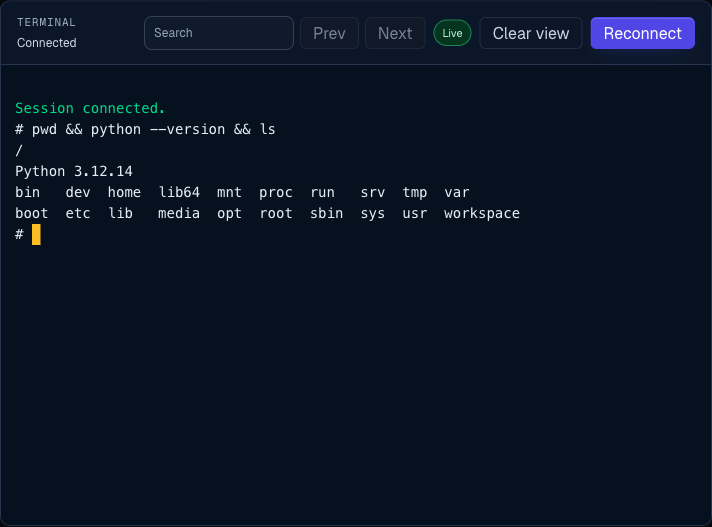
The development framework terminal gives you a browser-based shell inside a supported framework workspace. Use it for framework commands, tests, file inspection, Git synchronization, and connectivity checks while you are building.
The terminal is designed for development services such as framework starters. It is not a replacement for Git-backed application deployments, CI, or production operations.
When To Use It
Use the terminal to:
- Inspect generated project files.
- Run framework commands.
- Install or check development dependencies.
- Test environment variables after connecting a private service.
- Run one-off diagnostics before moving code into Git.
Avoid using it to:
- Store production-only changes that are not committed anywhere.
- Run long background jobs.
- Start a second web server on the same port as the running starter.
- Share secrets in chat, tickets, screenshots, or support messages.
Open A Terminal
- Open Services.
- Select a supported development service.
- Wait until the service status is Running.
- Open the Terminal tab.
- Click Open terminal.
When the session is ready, the terminal shows a connected state. You can clear the screen, reconnect, or close the browser tab when you are done.
Supported Services
Terminal access is available for framework starter services:
| Starter | Useful Check |
|---|---|
| FastAPI Starter | python --version |
| Django Starter | python manage.py check |
| Go Starter | go version |
| Laravel Starter | php artisan --version |
| Next.js Starter | node --version |
| Node Express Starter | node --version |
| Phoenix Starter | mix --version |
| Rails Starter | bin/rails --version |
| Spring Boot Starter | mvn --version |
| Flutter Starter | flutter doctor |
Each framework runtime includes Git and SSH tooling as well as its framework toolchain. Repository credentials are not embedded in the image.
Project Files
Starter projects are created on the service workspace. Most starters place the generated project under:
/workspace/app
Project source and intentional project data persist. Reproducible dependency trees, package caches, and build output use runtime-local storage and are recreated after a restart. For Flutter, the public process is the web preview; store Android release builds in a repository or artifact store intended for long-term retention.
Git Safety
- Use a dedicated feature branch for agent or terminal changes.
- Prefer repository-scoped, short-lived credentials.
- Keep
.env, private keys, credentials, local databases, and signing material out of commits. - Verify the remote and staged files before pushing.
- Remove temporary deploy keys when the task ends.
- Treat persistent files as runtime storage, not as version history or backup.
Private Service Connections
After connecting a private database, cache, queue, or backend service:
- Wait for the service update to finish.
- Open a new terminal session.
- Check the generated variable names in the service settings.
- Run a small framework-level connectivity test.
Private service connections are scoped to the selected workload. Use them instead of exposing private databases or queues with public URLs.
Session Behavior
- The terminal is available only while the service is running.
- A session can close when the service restarts, sleeps, resizes, or redeploys.
- Reconnect after a service update so new variables are available.
- Long-running commands use the resources assigned to the development service.
- Source and intentional data written to the starter workspace persist until the service and its data are deleted.
- Generated dependency and build directories can be replaced during restart; keep source in Git and publish release artifacts through a release pipeline.
Troubleshooting
If the terminal says it is unavailable:
- Confirm the service is a supported development starter.
- Confirm the service status is Running.
- Wake the service first if it is sleeping.
- Refresh the page and open a new terminal session.
If a command cannot find a dependency:
- Confirm the starter finished its first-boot setup.
- Check whether the generated project is under
/workspace/app. - Restart the service if the package registry was unavailable during first boot.
If connected service variables do not appear:
- Confirm the private service connection is still listed in settings.
- Wait for the update to finish.
- Open a new terminal session.
- Restart the app process if the framework caches environment variables.