Organizations And Workspaces
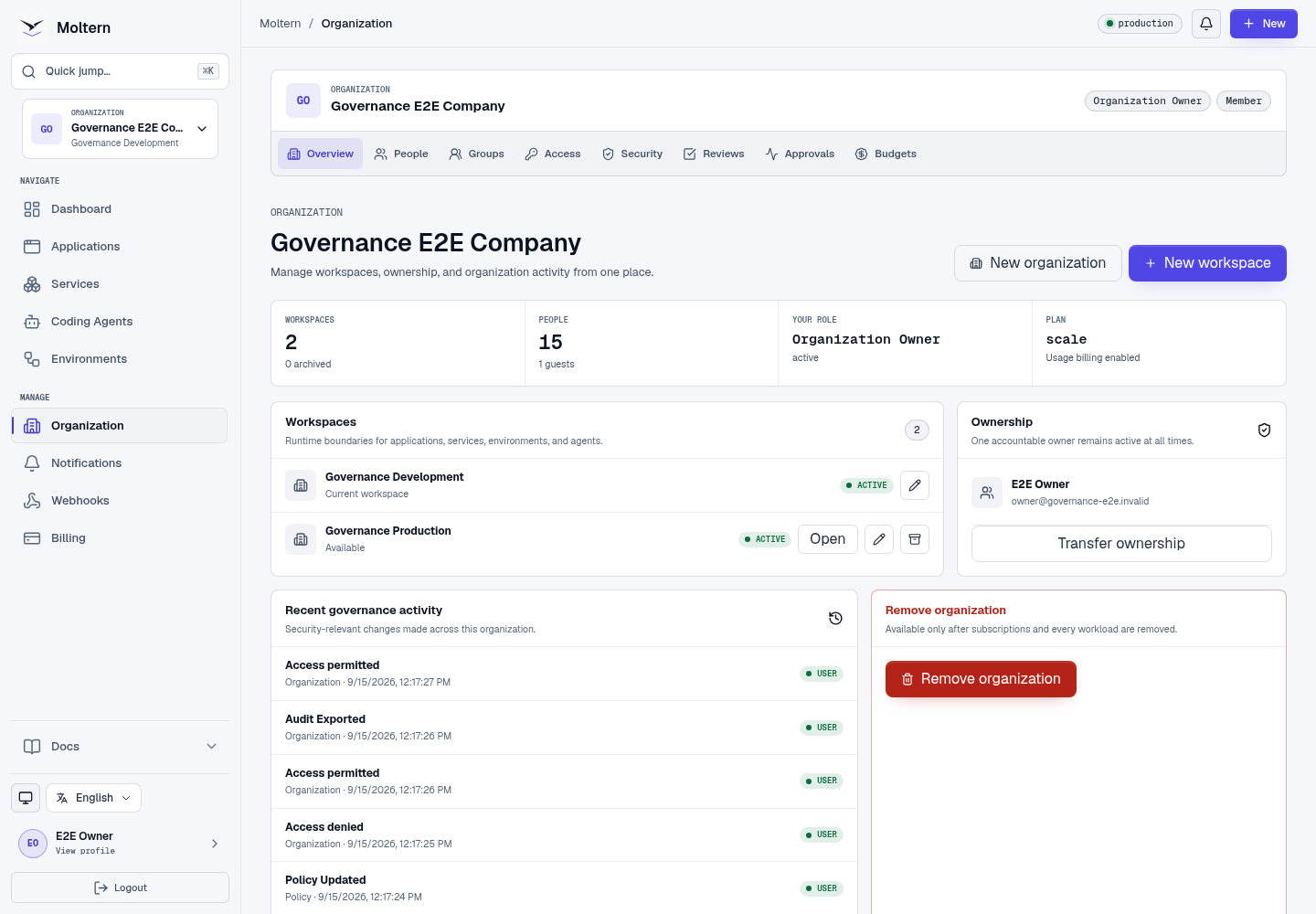
An organization is the company-level boundary for people, access policy, security, and billing responsibility. A workspace is an isolated operating area for applications, services, environments, coding agents, secrets, and storage.
Who Should Use This Page
- Organization owners planning company access.
- Organization administrators creating workspaces for teams or projects.
- Members who participate in more than one organization or workspace.
Choose The Right Boundary
Use separate workspaces when workloads need independent environments, access, budgets, or lifecycle management. Groups organize people and permissions; they do not create runtime resources.
Example:
Acme
|-- Customer Operations Development
|-- Customer Operations Production
|-- Shared Platform
`-- Partner Sandbox
Switch Organization Or Workspace
- Open the organization and workspace selector in the sidebar.
- Select an organization.
- Select one of its available workspaces.
- Confirm that the sidebar and dashboard show the selected workspace.
Moltern validates active membership each time the context changes. Losing membership or access removes that workspace from the selector and blocks direct API requests as well.
Create An Organization
Additional organizations are available only on eligible plans.
- Open Organization.
- Select New organization.
- Enter the company or business-unit name.
- Create the organization.
- Wait for its initial workspace to become available.
The creator becomes the first organization owner. Moltern always requires at least one active owner.
Create A Workspace
You need the Create workspace capability.
- Open Organization -> Overview.
- Select New workspace.
- Enter a clear name such as
Operations Production. - Create the workspace.
- Open it from the workspace list when provisioning completes.
Applications and services are not copied automatically into a new workspace.
Archive Or Delete A Workspace
Archiving blocks new operations and signs active users out of that workspace without immediately removing it. Restore an archived workspace when it is needed again.
Permanent deletion requires recent account confirmation and is available only after the workspace no longer owns workloads or protected commercial state. Cleanup continues in the background after the request is accepted.
Moving a workspace between organizations is not currently available. This boundary remains blocked until billing, storage, secrets, and runtime ownership can move atomically.
Expected Result
Each member sees only organizations and workspaces they can access. Workloads, secrets, usage, and billing actions remain constrained by the selected context and the member's effective role.
Troubleshooting
| Symptom | What to check |
|---|---|
| Workspace is missing | Confirm membership is active and the workspace is not archived. |
| New organization action is unavailable | Confirm plan eligibility and your organization capability. |
| Delete is blocked | Remove workloads and protected billing state, or keep the workspace archived. |
| Context changed unexpectedly | Refresh the page. Moltern may have moved you to the first remaining authorized workspace after access changed. |
Next: Invite people or grant scoped access.