Billing And Usage
Billing shows the workspace plan, quotas, subscription state, invoices, resource usage, storage usage, and overage controls.
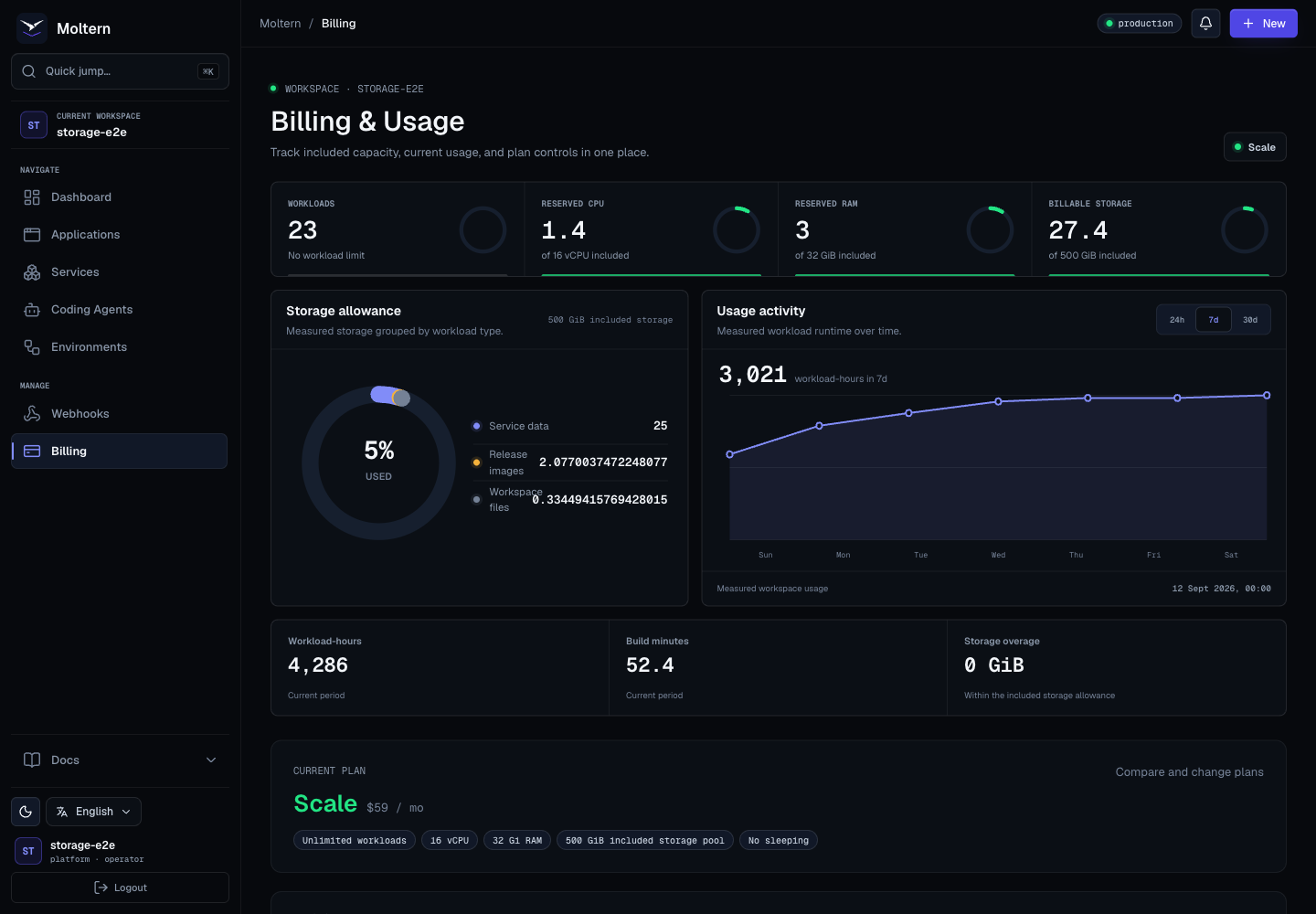
Use this page before changing workload size, adding production apps, enabling pay-as-you-go overages, or investigating a blocked deployment.
Plan, payment, invoice, subscription, and PAYG guardrail changes also create required email receipts for the workspace owner. See Notifications And Email.
What The Billing Page Shows
| Section | Purpose |
|---|---|
| Current plan | Shows the active plan and included limits. |
| Plan actions | Lets eligible workspaces compare plans, upgrade, downgrade, or open checkout. |
| Subscription | Shows paid subscription state, period dates, trial end, renewal, or scheduled cancellation when available. |
| Invoices | Links to hosted invoice and PDF history when billing is connected. |
| Pay-as-you-go guardrail | Lets eligible workspaces allow overages up to a monthly cap. |
| Workload quota | Shows workload count against the plan limit. |
| Resource usage | Shows reserved CPU, RAM, storage, release image storage, bandwidth, and period usage when measured. |
| Shared filespace | Shows shared file capacity, usage percentage, and health when available. |
| Workload usage rows | Shows usage grouped by workload where available. |
| Reclaimable storage | Shows static files or release images that may be cleaned up after retention windows. |
| Services summary | Shows deployed services, running services, and sleeping services that count toward quota. |
Plans

Moltern plan names shown in the UI include:
| Plan | Typical Use |
|---|---|
| Hobby | Small projects, experiments, and low-traffic services. Some services may sleep after inactivity. |
| Pro | Production apps and services that need more capacity and no sleeping behavior. |
| Scale | Larger workspaces with more workloads and higher resource limits. |
Always check the current in-product plan cards for the latest limits and prices.
Change A Plan
- Open Billing.
- Review the Current plan card and included limits.
- Click Choose plan or the available upgrade button.
- Compare the plan cards in the plan picker.
- Continue to checkout for a new paid subscription, or confirm a plan change when a subscription already exists.
- Return to Billing and check the banner at the top of the page.
Successful changes can show different outcomes:
- Immediate plan updates activate the new limits right away.
- Downgrades can be scheduled for the next renewal.
- Cancellation keeps paid features available until the current period ends.
- A scheduled cancellation can be resumed from the subscription card.
Subscription And Invoices
When billing is connected, the subscription card can show:
- Subscription status.
- Plan nickname or plan name.
- Price and billing interval.
- Current period start.
- Next renewal or cancellation date.
- Trial end when a trial is active.
- Manage subscription for hosted subscription management.
Invoice history appears only when invoices exist. Each invoice row can include the invoice date, number, status, amount, hosted invoice link, and PDF link.
If you do not see invoices, it usually means the workspace has no billed invoices yet or the current subscription has not generated one.
Workload Quota
The workload quota counts applications, top-level services, and coding agents. A coding agent consumes one workload slot while it exists; its CPU and RAM reservation applies while its terminal runtime is running. When the workspace approaches the limit:
- Review unused apps, services, and coding agents.
- Delete temporary preview or sandbox workloads.
- Stop workloads that should not run continuously.
- Upgrade the plan if the workspace has outgrown its limit.
Storage Allowance And Usage Activity
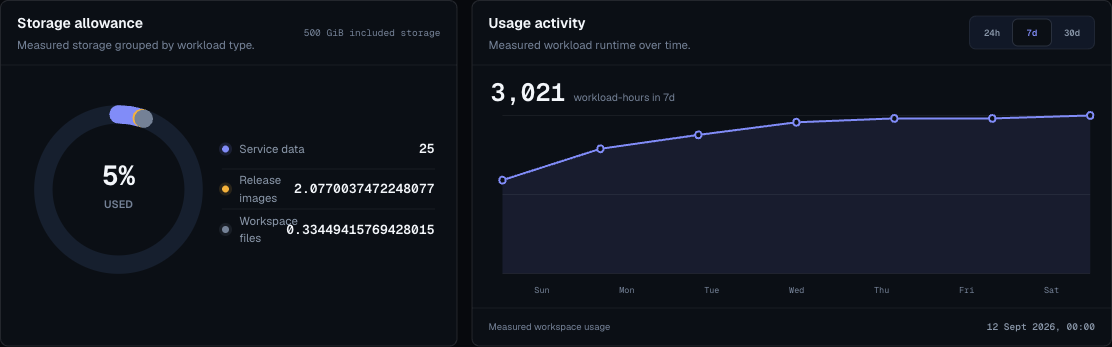
The storage allowance chart groups measured storage by workload type and compares the total with the plan allowance. The adjacent activity chart shows measured workload runtime for the selected period. Use the 24h, 7d, and 30d controls to change the time window when those measurements are available.
Reserved Versus Used Resources
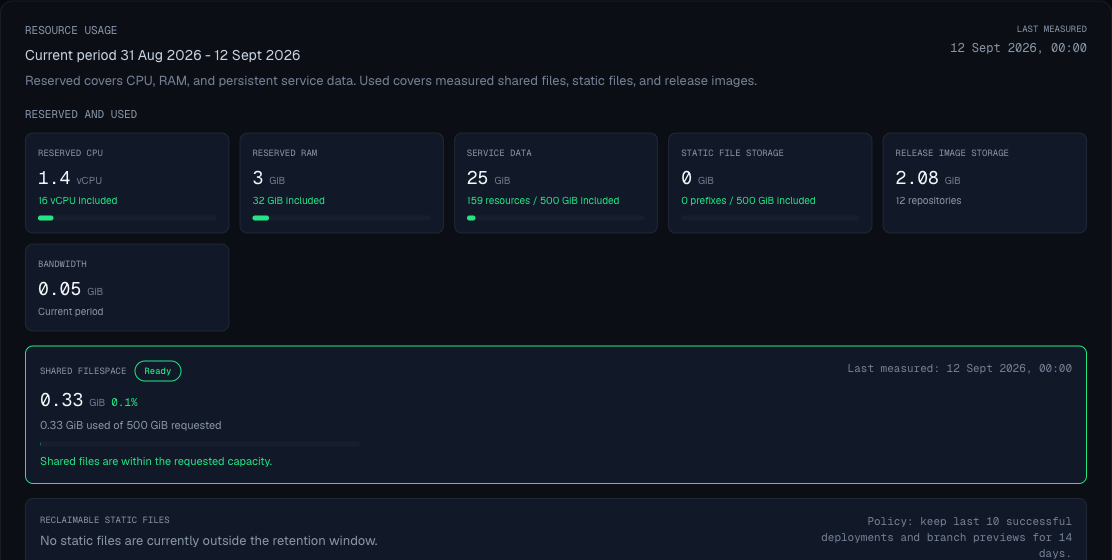
Billing may show both reserved and measured usage.
- Reserved CPU and RAM represent the capacity assigned to workloads.
- Dedicated storage represents storage allocated to stateful workloads.
- Static object storage represents stored static site releases.
- Release image storage represents deployable build images when measured.
- Bandwidth represents transfer usage when measured.
- Period usage shows workload hours, CPU hours, RAM hours, storage months, and build minutes when available.
Use reserved values to understand whether future deploys or resizes will fit within plan limits.
Metrics can show as unavailable or unknown while a measurement source is still being connected or validated. In that case, use the measured values that are available and check again after the next billing refresh.
Storage Usage
Storage is shown as workspace usage, then broken down by category and workload where available.
Common categories include:
- Application files.
- Service files.
- Database data.
- Static application output.
- Release images when the measurement source is validated.
- Persistent coding-agent workspaces.
Use Storage by workload to find the largest consumers before deleting data or increasing the plan. Values can show as zero when the workload has not written data yet or when the latest measurement has not run since the workload changed.
When Moltern cannot safely trust a measurement yet, Billing shows an explicit unknown or unavailable state instead of guessing. Unknown values are not the same as zero usage.
Pay-As-You-Go Guardrail
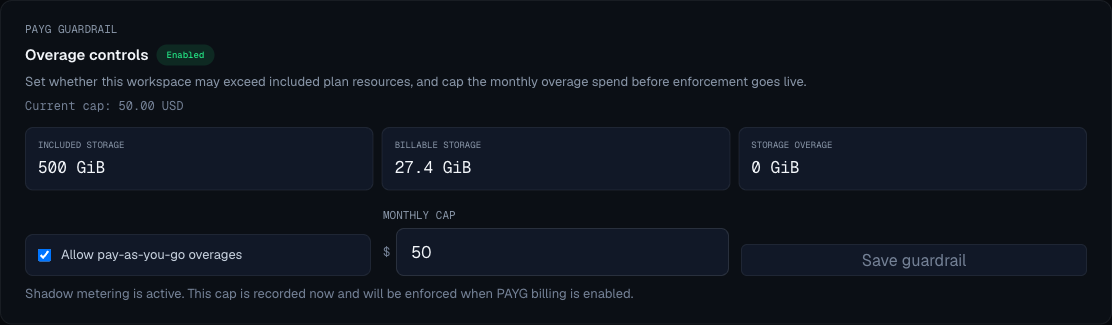
Eligible workspaces can allow overages up to a monthly cap.
Use the guardrail when:
- A production resize would exceed included quota.
- You want a hard spend ceiling.
- You need temporary burst capacity.
Keep it disabled when:
- The workspace should never exceed included plan limits.
- The owner has not approved overage spend.
- You are testing an unknown workload.
The guardrail can be locked when the workspace is not eligible, such as when a paid plan is required. When it is editable, set a monthly cap before enabling overages.
Billing Impact During Resize
Application and service resize previews, plus coding-agent create and start previews, may show:
- Proposed CPU, RAM, replicas, or storage.
- Monthly run estimate.
- Plan violations.
- Warnings.
- Whether pay-as-you-go is required.
- Whether the action is blocked.
Do not apply a resize until the preview is allowed and the cost impact is understood.
Storage Cleanup
Billing can show shared filespace health, static file usage, release image usage, and reclaimable storage.
Use these sections to answer:
- Which workloads reserve or use storage.
- Whether shared files are near the requested capacity.
- Whether old static releases are outside the retention window.
- Whether old release images can be removed.
- Whether storage readings are current or still unavailable.
Coordinate cleanup with the workload owner. Removing old artifacts can affect rollback options.
Deleted workload storage can remain visible for a short period until the cleanup and measurement jobs finish. If Billing still shows reclaimable or detached data after deletion, use the cleanup action shown in Billing or wait for the next measurement cycle before retrying a storage-heavy deploy.
Service Counts
The bottom of the page summarizes total services, running services, and sleeping services. Sleeping services still count toward workload quota, so a workspace can hit quota even when some services are not actively serving traffic.
Billing Runbook
When a deployment or resize is blocked:
- Open Billing.
- Check workload quota.
- Check reserved CPU, RAM, and storage.
- Review pay-as-you-go eligibility and cap.
- Remove unused workloads or right-size existing ones.
- Retry the deployment or resize.
- Upgrade the plan only after confirming the workload is still required.
When a plan change looks wrong:
- Open Billing and check for a checkout or plan-change banner.
- Review the subscription status and next renewal date.
- Check whether a downgrade or cancellation is scheduled instead of immediate.
- Open invoice history if a charge needs to be reviewed.
- Use Manage subscription for payment method, invoice, and hosted subscription actions when available.
When usage appears incomplete:
- Check Last measured in the resource usage card.
- Look for unavailable metric chips.
- Review storage by workload to see whether any workload has measured rows.
- Confirm whether a recently deleted workload still has reclaimable or detached data.
- Recheck after the next measurement period if a metric says it is not measured yet.