Notifications And Email
Moltern sends concise email receipts when an account, organization access, billing setting, application, service, integration, usage limit, or coding agent needs a record or an action.
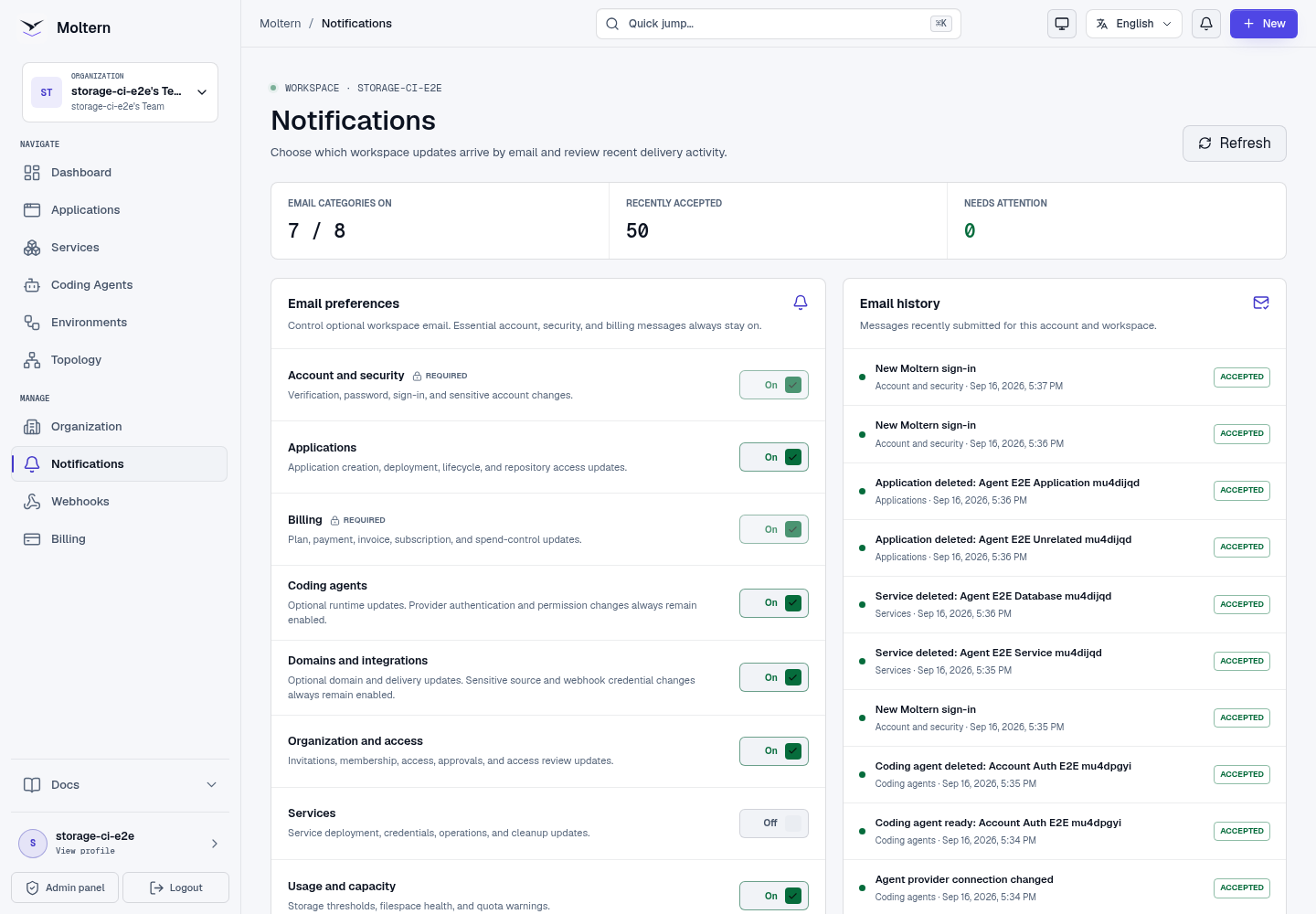
Open Notifications from the workspace sidebar to choose optional email categories. The bell in the top bar shows recent delivery activity without leaving the current page.
Open Notifications
Use either entry point:
- Select the bell in the top bar to review the latest email delivery records.
- Select Manage notifications in that panel, or Notifications in the workspace navigation, to open preferences and the complete recent history.
Members with notification-view access can read the page. Changing an optional category also requires notification-management access. When you can view but cannot manage notifications, the preference controls remain read-only.
Where Messages Go
- Account and sign-in messages go to the affected account email address.
- Workspace operations and billing messages currently go to the workspace owner.
- Invitations, access changes, approval requests, and access-review reminders go to the affected member or responsible reviewer.
- A delivery appears in the history for the account and workspace that received it.
Keep the account email current and use an address that can receive external mail.
Required And Optional Messages
Account and security and Billing are required categories. They cannot be disabled because they record identity, credential, payment, plan, and subscription changes.
The following categories can be switched on or off:
- Applications
- Services
- Usage and capacity
- Domains and integrations
- Coding agents
- Organization and access
Some security receipts remain enabled inside an otherwise optional category. These include source-access changes, deploy-hook secret changes, coding-agent provider authentication, coding-agent permission changes, invitations, membership changes, resource-access changes, and approval decisions. The category description identifies these exceptions before you change a setting.
When Moltern Sends Email
| Category | Examples |
|---|---|
| Account and security | Email verification, welcome, password reset, password change, connection-details password change, and new sign-in. |
| Billing | Plan changes, payment success or failure, invoices, subscription end, and PAYG guardrail changes. |
| Applications | Application creation, deployment results, lifecycle and capacity operations, deletion, and lost repository access. |
| Services | Creation and install results, dependency setup failure, connection details becoming ready, capacity changes, deletion, and terminal cleanup failure. |
| Usage and capacity | Storage threshold warnings, a capacity limit blocking an action, shared-filespace attention, and recovery. |
| Domains and integrations | Domain verification results, repository installation changes, deploy-hook secret changes, and outbound event submission problems. |
| Coding agents | Runtime start result, provider connection changes, permission changes, and deletion. |
| Organization and access | Invitations, membership or guest-access changes, scoped-access changes, approval requests and decisions, and access-review reminders. |
Routine status email is designed to complement the in-product deployment logs and status pages. It does not replace them.
These settings cover transactional account and workspace messages. Moltern does not enroll accounts in promotional email through the notification center. Marketing campaigns require a separate explicit opt-in and unsubscribe workflow.
Change Email Preferences
- Open Notifications.
- Find Email preferences.
- Switch an optional category on or off.
- Wait for the control to finish saving before leaving the page.
Required categories show a lock and stay enabled. Preference changes apply to the current account in the active workspace.
Turning off an optional category suppresses its routine messages. It does not suppress required security, billing, credential, or access receipts assigned to that category.
Review Email History
The Email history panel shows recent subjects, categories, timestamps, and delivery states.
History reports Moltern's delivery workflow. It does not display message contents, recipient addresses, provider diagnostics, credentials, or other sensitive delivery metadata.
| State | Meaning |
|---|---|
| Accepted | Moltern handed the message to the configured email delivery service. This does not guarantee that the recipient inbox accepted it. |
| Processing | The message is being prepared or submitted. Refresh if it remains in this state. |
| Failed | The latest delivery attempt did not complete. Moltern can retry transient failures. |
| Skipped | The message was not sent because its optional category was disabled. |
Common Email Flows
Register With Email And Password
- Create the account.
- Open the verification message and click Verify email.
- Sign in after verification succeeds.
- Moltern sends the welcome message when the address is confirmed.
An unverified email-and-password account cannot enter the platform.
Sign In With Google Or GitHub
Provider sign-in and repository access are separate. A provider can confirm an account identity, while the Moltern GitHub App controls access to selected repositories. See Auth And Account Access.
A new account with a provider-verified email receives one welcome message. When Moltern cannot confirm the address from the provider response, it sends verification first and sends the welcome message after confirmation.
Deploy An Application Or Service
Moltern sends the result after the operation reaches a durable success or failure state. A service that exposes managed connection details can send an additional receipt when those values are ready to reveal securely in its settings.
Reach A Usage Limit
Usage notices are sent when measured storage crosses configured thresholds. A separate capacity notice can be sent when a create, deploy, start, or resize action is blocked by the workspace allowance.
Troubleshooting
When a message does not arrive:
- Open Notifications and review its category setting.
- Check Email history for the subject and delivery state.
- Confirm the account email address is correct.
- Check spam, quarantine, and mailbox filtering.
- Allow a short delay for asynchronous operations to reach their final state.
- Use the in-product status and logs while a deployment is still running.
If history shows Accepted but the inbox has no message, the receiving mail system may have filtered or rejected it after submission. If history shows Failed repeatedly, contact support with the subject and timestamp. Never include passwords, tokens, or connection details in a support message.