People And Invitations
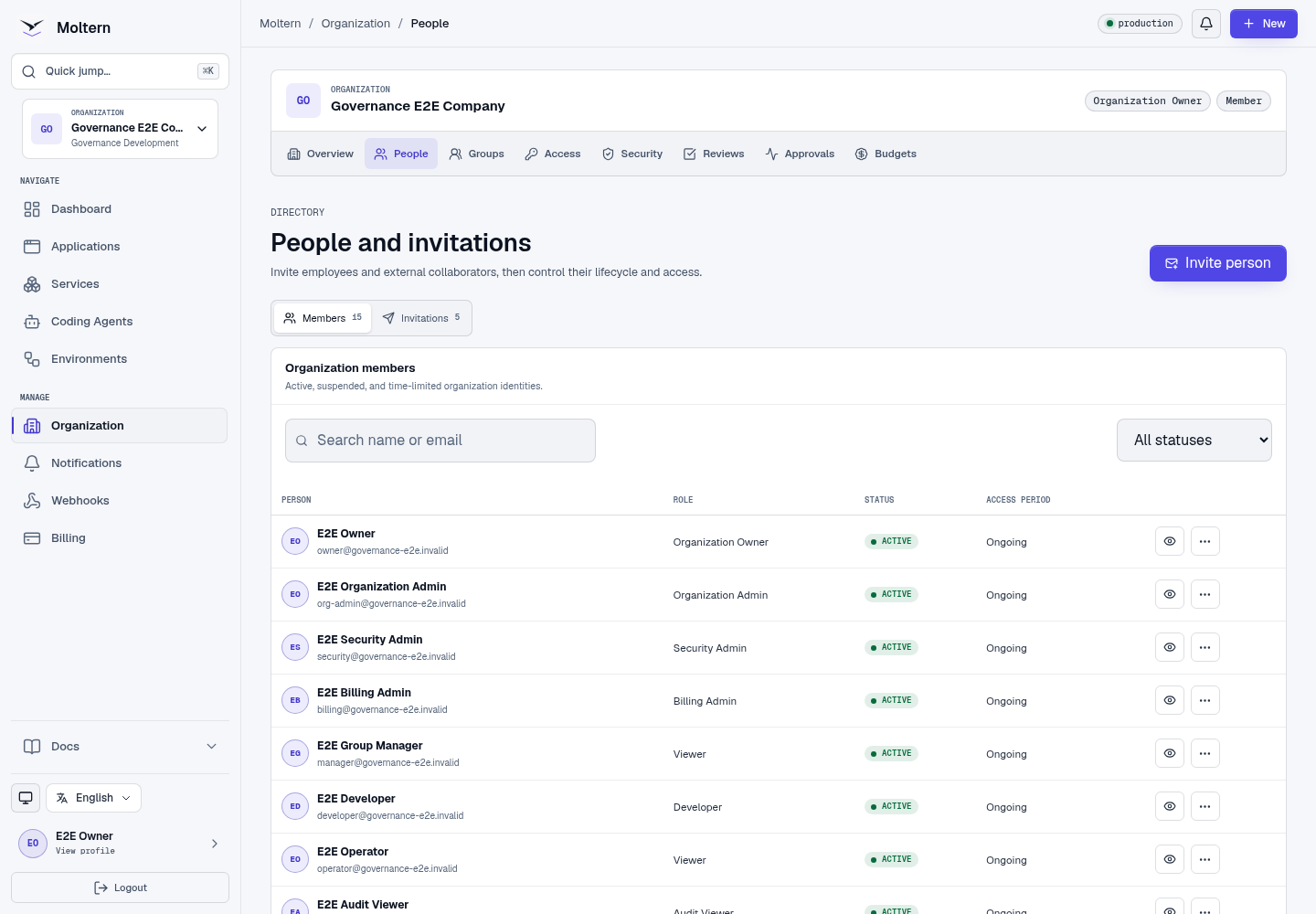
The organization directory controls who belongs to the company account. Workload access is granted separately through roles and groups.
Prerequisites
- Open the intended organization and workspace context.
- Have permission to invite or manage members.
- Know whether the person is an employee or an external guest.
Invite A Person
- Open Organization -> People.
- Select Invite person.
- Enter the recipient's email address.
- Choose the initial managed role.
- Mark an external collaborator as a guest.
- Set a sponsor and expiry when guest policy requires them.
- Review and send the invitation.
The invitation link is single-use, expires automatically, and is bound to the normalized recipient email. Forwarding it to another identity does not grant access.
Accept An Invitation
The recipient can use an existing email/password, Google, or GitHub identity whose verified email matches the invitation.
- Open the invitation link.
- Sign in or create the matching account.
- Confirm the invitation.
- Select the new organization or workspace from the sidebar.
Expired, revoked, malformed, previously used, or wrong-email invitations fail without exposing organization details.
Resend Or Revoke An Invitation
Open the Invitations tab to resend a valid invitation or revoke one that should no longer be accepted. A resent invitation replaces the prior secret link.
Suspend, Restore, Or Remove A Member
- Suspend immediately blocks organization access while preserving the directory record.
- Restore reactivates membership, but only still-valid grants become effective.
- Remove ends membership and invalidates organization access.
Moltern revokes affected sessions and scoped terminal or realtime access when a member is suspended or removed. The final active organization owner cannot be suspended or removed.
External Collaborators
Guests should receive only the workspace or workload access they need. Guest policy can require an internal sponsor and limit the access period. By default, guests cannot manage billing, identity, organization ownership, or reveal secrets merely because another grant is broad.
Expected Result
The member appears with the correct role, status, and access period. Invitation and lifecycle changes appear in organization audit history and can generate notification email.
Troubleshooting
| Symptom | What to check |
|---|---|
| Recipient cannot accept | Verify the signed-in email exactly matches the invitation and the link is current. |
| Person can join but sees no workload | Add a scoped role grant directly or through a group. |
| Suspend action is blocked | Confirm another active organization owner will remain. |
| Guest expiry is rejected | Check the organization's maximum guest lifetime and sponsor requirement. |