Connection Details Password
Use a connection details password when you need to reveal sensitive values for a managed service, such as a database password, token, or generated connection string.
This password is separate from your Moltern login password. It also works for accounts that sign in with Google or GitHub.
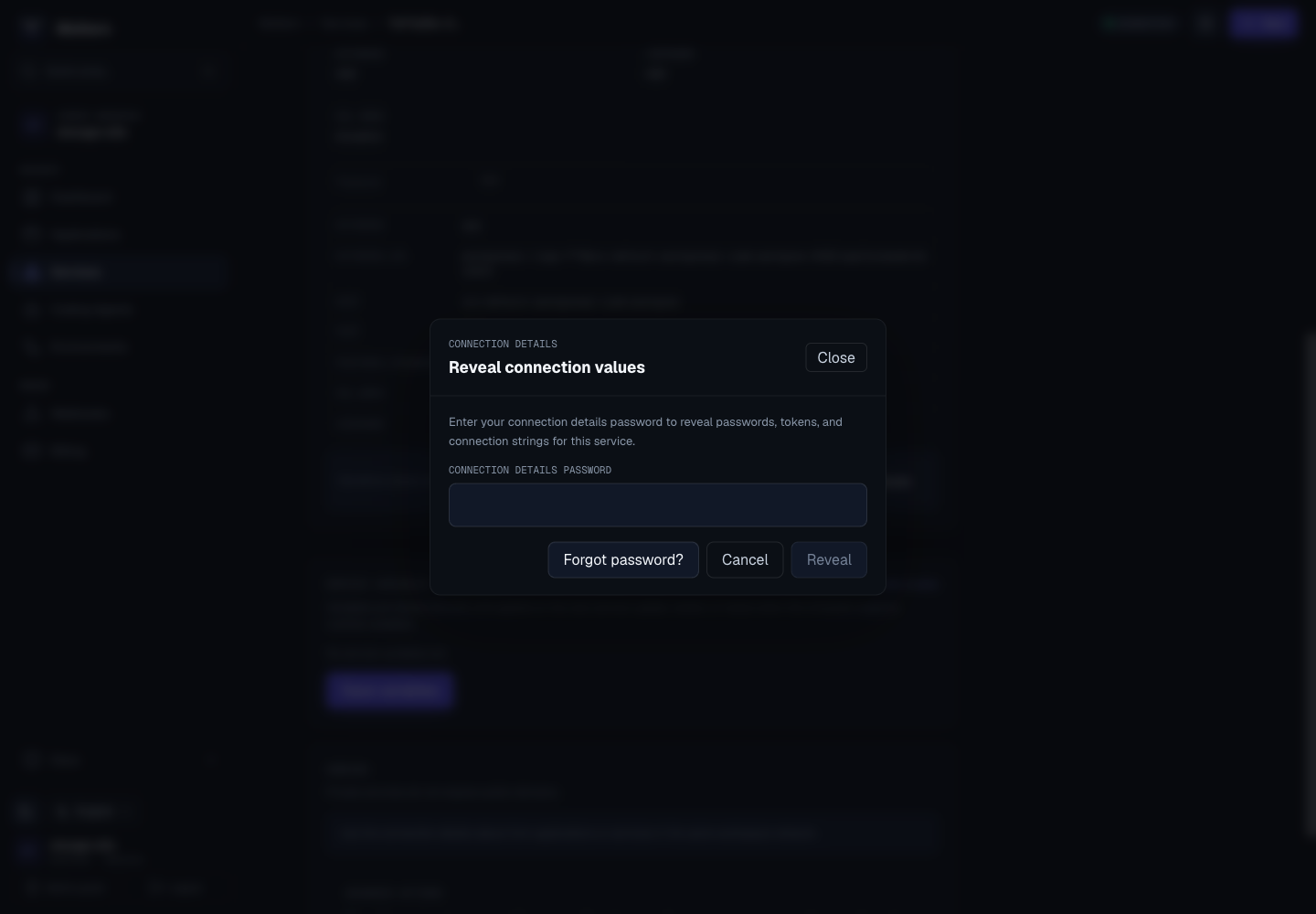
When You Need It
Moltern may ask for this password when you reveal masked connection values on a service page.
Use it for:
- Database passwords.
- Generated connection strings.
- Initial service admin credentials.
- Service tokens.
- Sensitive service-to-service credentials.
You do not need it to sign in, deploy an app, view non-sensitive service fields, or open a public service URL.
Set It For The First Time
- Open Services.
- Open the database, private service, or catalog service that shows Connection Details.
- Go to Settings.
- Find Connection Details.
- Click Reveal connection values.
- Enter a new password and confirm it.
- Click Save and reveal.
Use a strong password and store it in a password manager.
Reveal Connection Values Later
- Open the service detail page.
- Go to Settings.
- Click Reveal connection values.
- Enter your connection details password.
- Copy only the values your application or service needs.
Avoid pasting revealed values into chat, tickets, documentation, or source code.
Read The Connection Fields
Each credential is shown once with its descriptive label, such as Password or Owner email. Connection strings remain available separately when the service provides them. They combine several fields and can contain a password, so keep them private too.
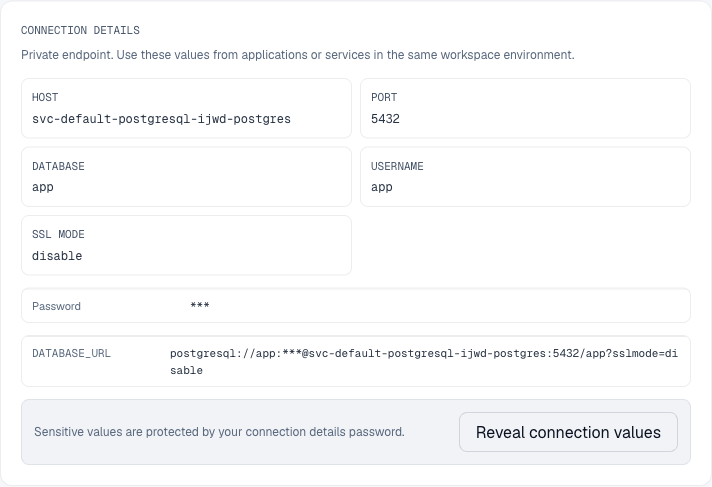
Applications and coding agents may receive environment-variable names for the same credentials when you grant a supported connection. A shorter Settings panel does not remove those integration variables or change that grant.
Opening Settings does not reveal a password. Revealing values does not grant another application or agent access; configure its connection separately.
Social Login Accounts
If you sign in with Google or GitHub, you may not have a normal Moltern login password. That is expected.
The connection details password is only for revealing sensitive service connection values. Setting it does not change your social login method.
Good Practices
- Create one password only you know.
- Use a password manager.
- Reveal values only when you need to configure a workload.
- Rotate service credentials when ownership changes.
- Keep database services private unless they are explicitly designed for public access.
Troubleshooting
If the button asks you to set a password, your account does not have one yet.
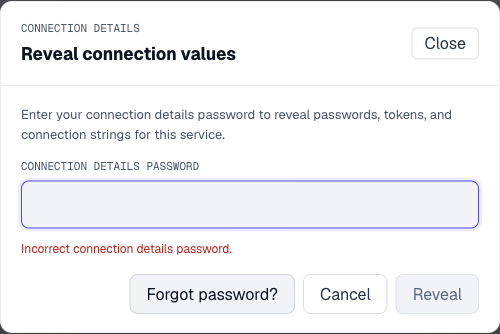
If the password is rejected, check that you are entering the connection details password, not your login password.
The dialog shows an error without revealing the protected values. You can try the correct password, choose Cancel, or use Forgot password? to recover access. Cancelling does not change the service's native login credentials.
If you no longer know the password:
- Open the service detail page.
- Go to Settings.
- Click Reveal connection values.
- Click Forgot password? in the reveal dialog.
- Open the reset link sent to your account email.
- Choose a new connection details password.
- Return to the service and reveal the values with the new password.
The old connection details password cannot be shown again. Moltern stores only a protected hash and lets you replace it after account verification.
If connection fields are still masked after reveal, refresh the service page and try again.